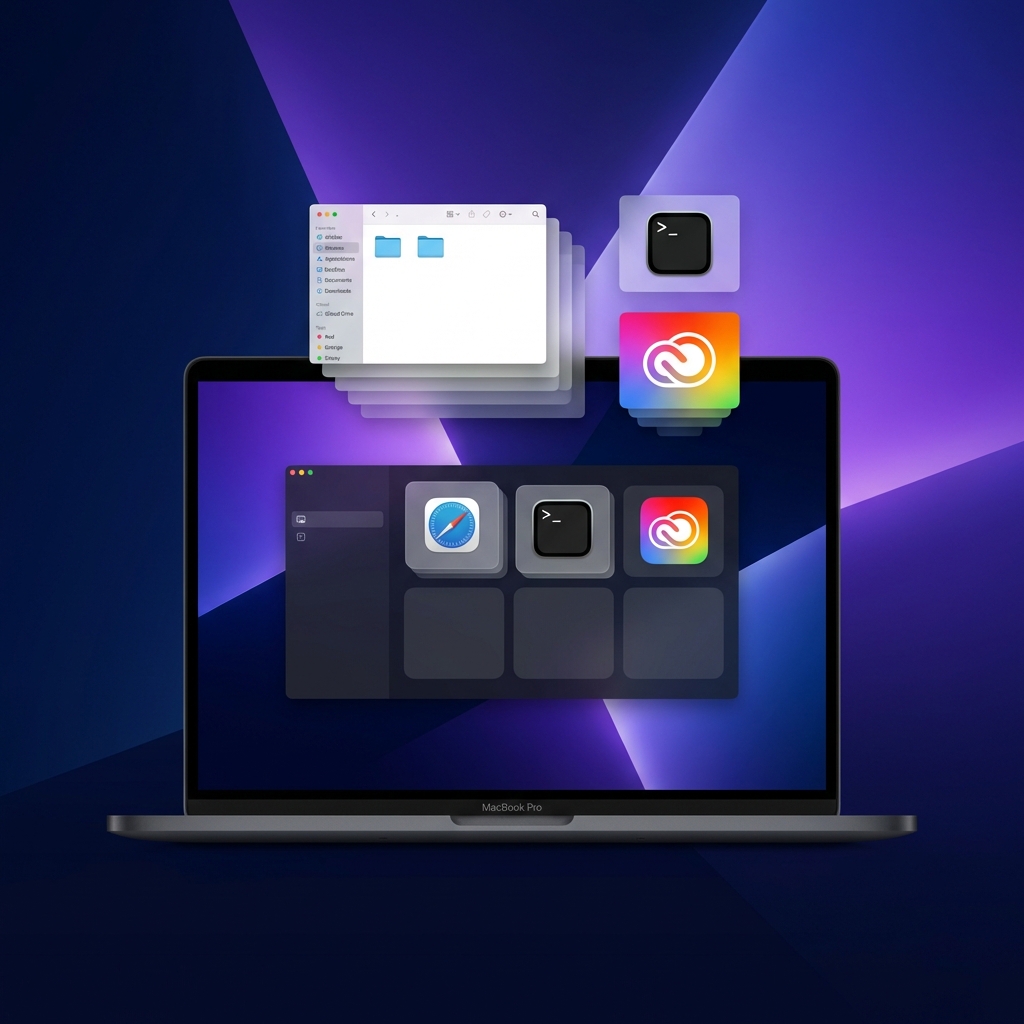
从 Photoshop、Unity、Unreal 到编程语言,AI 可能改变的不是工具本身,而是人使用工具的方式。 / From Photoshop, Unity, and Unreal to programming languages, AI may change not the tools themselves, but how people use them.
If you are wearing AirPods, why move your hands back and forth between the keyboard and trackpad just to switch music, flip documents, or control the cursor?
Aether is a tool that unlocks the hidden interaction potential of macOS. It allows you to use your voice for input and common Mac actions, eliminating the need to revert to the keyboard and mouse for every small task. This is more than just an enhancement for AirPods users—it’s a step toward the vision of “Using Mac without keyboard & mouse.”
✨ Core Features
1. Voice Input (Dictation)
Reply to messages, rename files, and take notes. The most direct efficiency boost: say it, and it appears where you need it. We recommend starting with “Push to Talk” for the most stable experience.
2. Voice Control
Clicks, right-clicks, double-clicks, undo, scroll. Offload the small actions that keep pulling you back to the trackpad. It makes the keyboard and mouse optional, not required.
3. Head Pointer
Utilizing sensors in AirPods Pro / Max to control the cursor as naturally as moving your head. Combined with posture guides and re-centering, it provides a smooth pointing experience.
🛠️ Getting Started the Right Way
As spatial interaction requires an adaptation period, we suggest following this sequence:
Install First, Then Grant Permissions: Move Aether into /Applications before granting permissions. This ensures macOS binds accessibility, microphone, and speech permissions to the final path.
Start with Voice Input: Confirm the dictation workflow is stable and text appears correctly in input fields.
Try Voice Control Next: Test simple commands like click and scroll.
Turn on Head Tracking Last: Head tracking is an optional layer, not a prerequisite. Enabling it last makes the transition much smoother.
🔒 Privacy & Local Logic
Aether is designed to keep interaction logic as local to the Mac as possible. Your dictation text and documents are not uploaded to our servers as part of normal use.
On macOS, we often face a dilemma: to keep the system smooth, we want to clear redundant background processes; but to avoid interrupting the workflow, we fear that tools might “mistakenly kill” critical tasks running in the background (such as large file downloads, video rendering, or meetings).
Aion is a background automation assistant designed specifically to solve this pain point. It no longer simply relies on “idle time” to decide whether to close an app, but instead judges whether an app is “truly idle” through a deep context-aware system.
Core Philosophy
Trust is the foundation of automation. Aion’s core goal is not just to close more background apps, but to let you confidently hand over the decision of “closing background apps” to it, without worrying that it will suddenly cut off your browser while your download is at 99%.
✨ Core Features
🎯 Smart Guards & Context-Awareness
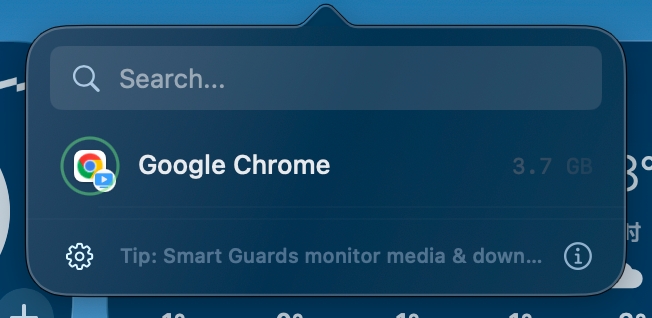
Aion is conservative by design. It checks what the app is doing before it quits anything.
Protects Active Downloads: Network activity keeps the app protected instead of being quit too early.
Protects Music and Video Playback: Apps currently playing media are protected.
Protects Mic and Camera Activity: If you are on a call or recording, the relevant app stays protected.
2. AI App Protection
Aion can protect an app while a local AI or agent workflow is actively using it, instead of treating that app like ordinary background idle time.
📊 Building the Trust Loop
1. Activity Log
This is the most important update in recent versions. It opens up the “black box” of automation, allowing you to clearly see: which app was attempted to be closed just now, and why it was retained.
2. Instant Task Mode
For small utilities like calculators or dictionaries, Instant Task mode lets short-lived apps disappear right after use.
Why Aion feels safer than timer-based tools?
Most tools only look at “how long it has been idle”. Aion looks at “whether it is still doing productive work” before deciding:
Browser Downloads: Timer-based tools might still clean them up after expiration; Aion recognizes the download activity.
System Cleanup: Aion can automatically clean up leftover installer DMGs and close Dock apps with no windows.
🌟 Creator’s Note
A background tool itself should not become a new background burden.
We’ve optimized Aion’s resource usage to ensure it remains nearly invisible:
Visibility Driven: Interface logic only refreshes when the menu bar or HUD is visible.
Minimal Resource Footprint: All judgments are completed locally on your Mac, ensuring privacy and performance.
For more information, visit the official website: aion.7caifei.com
Error generating commit message: [unknown] core.repositoryformatversion does not support extension: worktreeconfig
In the end, neither of them turned out to be the real root cause.
Removing the false leads first
The worktreeconfig error was the first false lead.
It can affect Git-related features such as commit message generation, but it is not on the same path as “chat sends but never replies”.
The second false lead was ECONNREFUSED.
Once I kept reading the logs, it became clear that the language server was eventually starting successfully:
1
2
3
4
LS lspClient started successfully
Language server started
loadCodeAssist
fetchAvailableModels
So the refused localhost port looked more like a startup race or transient failure, not the final blocker.
The real failure was in the renderer
The truly important error showed up in the renderer log:
1
[createInstance] ... depends on UNKNOWN service agentSessions
There was also a related message like:
1
command 'workbench.action.chat.newChat' not found
That changes the diagnosis completely.
At that point, the issue is no longer just the language server. It means the chat workbench itself is missing a required session service registration.
In other words, the input box may still be visible, but the front-end chat pipeline is already broken.
Why reinstalling the current version did not help
I compared not only the local /Applications/Antigravity.app, but also the then-current official installer downloaded from the official releases feed.
The result was:
The local current version matched the official current version.
So this was not simply “a corrupted install on this Mac”.
On the code path I hit during this debugging session, the current official build itself appeared to be problematic.
That is why deleting and reinstalling the latest version did not meaningfully help.
Why I did not hot-patch the app bundle
At one point I had already narrowed the issue down to a suspicious missing registration in the workbench bundle and even tried building a local patch.
On macOS, that quickly runs into system policy:
1
2
Security policy would not allow process
The file is adhoc signed or signed by an unknown certificate chain
That means:
You can patch it technically.
But the patched app is not a good long-term runtime target.
Once you modify resources inside a signed app, you start fighting code signing, AMFI, and system policy.
So “hot-patching the installed app” is not a reliable long-term fix.
The fix that actually worked
The working solution was not to keep patching the broken current version, but to:
Switch to an officially signed older build, Antigravity 1.20.6.
Repoint the language server path to the binary shipped inside that build.
Disable auto-update so it would not jump back to the broken version.
It avoids breaking the integrity of the installed app bundle.
It pins the runtime to a version that still behaves normally.
The most useful lessons from this debugging session
Do not let the first visible error dictate the whole investigation.
Separate noisy errors from fatal ones.
Do not assume reinstalling the latest build will always help.
On macOS, patching a signed app is rarely the best long-term answer.
If a release itself is the problem, an officially signed older version plus update pinning is often much more practical.
Closing note
The hardest part of this issue was not the lack of logs.
It was the opposite: there were too many logs, and several of them were misleading.
At first glance it looked like a language server problem, or a Git problem, or a cache problem.
In the end, the real issue was the chat workbench path itself and the version being used.
What finally brought the app back to a usable state was:
rolling back to the officially signed 1.20.6 build, repointing the language server path, and locking updates.